Water meter and HomeAssistant

Guide: Reading Multical 21 & FlowIQ 2200 Water Meters in Home Assistant via ESPHome
Introduction
This guide explains how to read Wireless M-Bus (wMBus) data from two types of water meters:
• Kamstrup Multical 21
• Kamstrup FlowIQ 2200
Using:
• ESP32
• CC1101 868 MHz radio module
• ESPHome
• Wmbusmeter add-on
You will find two complete YAML configurations included at the end of this guide.
Hardware Required
• ESP32 Dev Board
• CC1101 868 MHz RF module
• Jumper wires
• USB cable for programming
• Home Assistant
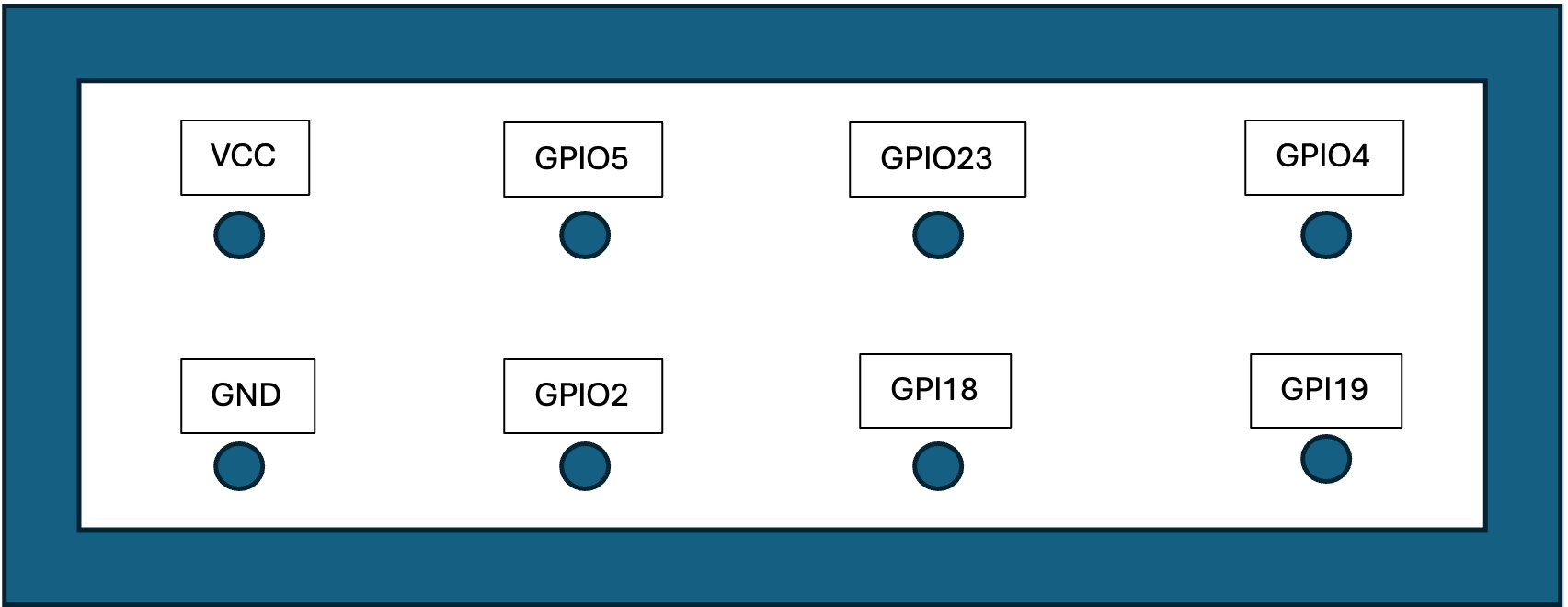
Wiring Diagram (ESP32 → CC1101)
Connect the CC1101 to the ESP32 as follows:
CC1101 Pin → ESP32 Pin
• VCC → 3.3V
• GND → GND
• MISO → GPIO19
• MOSI → GPIO23
• SCK → GPIO18
• CS → GPIO5
• GDO0 → GPIO4
• GDO2 → GPIO2
Install Required Home Assistant Add-ons
Install from Add-on Store and HACS (Home Assistant Community Store):
1. Wmbusmeter – decodes Wireless M-Bus telegrams
3. ESPHome – for firmware building and flashing (tested with 2025.0.0 to 2025.10)
Make sure these are running after installation.
Extracting the AES Key (KEM Key)
To decode encrypted telegrams, you need the AES key from your water supplier. Ask their customer service.
1. Open Wmbusmeters
2. Go to the “KEM Processing” tab and upload your kem file.
3. Extract the meter details (meter ID + key)
This key along with the meter ID will be used inside the YAML file. Meter ID is the same as the meter number printed on the meter.
Preparing the ESP32 Using ESPHome
1. Open ESPHome in Home Assistant
2. Click “New Device” → Continue
3. Select “ESPHome Web” to flash via browser
4. Connect your ESP32
5. Flash minimal base image
6. Adopt the device into Home Assistant
Once adopted, open the device YAML for editing.
Flashing the Final YAML
1. Copy the YAML configuration from this guide and correct the syntax.
2. Paste it into the ESPHome YAML editor
3. Adjust Wi-Fi, meter ID, keys, and names
4. Click INSTALL → “Plug into this computer”
5. Flash via ESPHome Web
Your water meter should now appear in Home Assistant automatically. Open the ESPHome integration under settings/integrations and check if the meter sends values as intended.
Unfortunately this script is problematic with the latest version of ESP home builder. 2025.0.0 to 2025.10.0 is confirmed working.
Big thanks to all of you developers, SzczepanLeon and many more for providing this solution.
Multical 21 ESPHome YAML
esphome:
  name: multical21
  friendly_name: watermeter
  name_add_mac_suffix: false

esp32:
  board: nodemcu-32s
  framework:
    type: arduino

logger:
  level: DEBUG

api:

ota:
  platform: esphome

wifi:
  ssid: !secret wifi_ssid
  password: !secret wifi_password

time:
  - platform: sntp
    id: sntp_time
    timezone: Europe/Stockholm
    servers:
      - pool.ntp.org
      - time.google.com

external_components:
  - source:
      type: git
      url: https://github.com/SzczepanLeon/esphome-components
      ref: c6430dd9d4da8c93ec3b400741d092a91bf26f8f
    components: [wmbus]
    refresh: 0s

wmbus:
  mosi_pin: GPIO23
  miso_pin: GPIO19
  clk_pin: GPIO18
  cs_pin: GPIO5
  gdo0_pin: GPIO4
  gdo2_pin: GPIO2
  all_drivers: false
  log_all: true                 # set false once it decodes — very chatty at DEBUG

sensor:
  - platform: wmbus
    meter_id: 0x12345678        # hex literal, 8 digits — yours had 7
    type: multical21
    key: "00000000000000000000000000000000"   # 32 hex chars
    sensors:
      - name: "RSSI"
        field: "rssi"
        device_class: signal_strength
        state_class: measurement
        accuracy_decimals: 0
        unit_of_measurement: "dBm"

      - name: "Total Water"
        field: "total"
        device_class: water
        state_class: total_increasing
        accuracy_decimals: 3
        unit_of_measurement: "m³"

      - name: "Tapwater Target"
        field: "target"
        device_class: water
        state_class: total
        accuracy_decimals: 3
        unit_of_measurement: "m³"

      - name: "Tapwater Temperature"
        field: "flow_temperature"
        device_class: temperature
        state_class: measurement
        accuracy_decimals: 0
        unit_of_measurement: "°C"
        filters:
          - lambda: return (x >= 127) ? NAN : x;   # 127 = "not available"

      - name: "Tapwater External Temperature"
        field: "external_temperature"
        device_class: temperature
        state_class: measurement
        accuracy_decimals: 0
        unit_of_measurement: "°C"
        filters:
          - lambda: return (x >= 127) ? NAN : x;

text_sensor:
  - platform: wmbus
    meter_id: 0x12345678        # must match the sensor block exactly
    type: multical21
    key: "00000000000000000000000000000000"   # must match the sensor block exactly
    sensors:
      - name: "Watermeter Status"
        field: "status"
      - name: "Watermeter Dry Time"
        field: "time_dry"
      - name: "Watermeter Reverse Time"
        field: "time_reversed"
      - name: "Watermeter Leak Time"
        field: "time_leaking"
      - name: "Watermeter Burst Time"
        field: "time_bursting"
FlowIQ 2200 ESPHome YAML
esphome:
  name: flowiq2200
  friendly_name: watermeter
  name_add_mac_suffix: false

esp32:
  board: esp32dev
  framework:
    type: arduino

logger:
  level: DEBUG

api:

ota:
  platform: esphome

wifi:
  ssid: !secret wifi_ssid
  password: !secret wifi_password

time:
  - platform: sntp
    id: sntp_time

external_components:
  - source:
      type: git
      url: https://github.com/SzczepanLeon/esphome-components
      ref: c6430dd9d4da8c93ec3b400741d092a91bf26f8f
    components: [wmbus]
    refresh: 0s

wmbus:
  mosi_pin: GPIO23
  miso_pin: GPIO19
  clk_pin: GPIO18
  cs_pin: GPIO5
  gdo0_pin: GPIO4
  gdo2_pin: GPIO2
  led_pin: GPIO0
  led_blink_time: 1s
  all_drivers: false
  log_all: false

sensor:
  - platform: wmbus
    meter_id: 0x12345678          # hex literal, not bare decimal
    type: flowiq2200
    key: "00000000000000000000000000000000"   # 32 hex chars
    sensors:
      - name: "RSSI"
        field: "rssi"
        device_class: signal_strength
        state_class: measurement
        accuracy_decimals: 0
        unit_of_measurement: "dBm"

      - name: "Total Water"
        field: "total"
        device_class: water
        state_class: total_increasing
        accuracy_decimals: 3
        unit_of_measurement: "m³"

      - name: "Watermeter Max Flow"
        field: "max_flow"
        device_class: volume_flow_rate
        state_class: measurement
        accuracy_decimals: 3
        unit_of_measurement: "m³/h"

      - name: "Watermeter Flow"
        field: "flow"
        device_class: volume_flow_rate
        state_class: measurement
        accuracy_decimals: 3
        unit_of_measurement: "m³/h"

      - name: "Tapwater Target"
        field: "target"
        device_class: water
        state_class: total
        accuracy_decimals: 3
        unit_of_measurement: "m³"

      - name: "Tapwater Temperature"
        field: "min_flow_temperature"
        device_class: temperature
        state_class: measurement
        accuracy_decimals: 0
        unit_of_measurement: "°C"
        filters:
          - lambda: return (x >= 127) ? NAN : x;   # 127 = "not available"

      - name: "Tapwater External Temperature"
        field: "min_external_temperature"
        device_class: temperature
        state_class: measurement
        accuracy_decimals: 0
        unit_of_measurement: "°C"
        filters:
          - lambda: return (x >= 127) ? NAN : x;

text_sensor:
  - platform: wmbus
    meter_id: 0x12345678
    type: flowiq2200
    key: "00000000000000000000000000000000"
    sensors:
      - name: "Watermeter Status"
        field: "status"